
Deactivate and Delete Users
There are several different states that a user profile can be in. As an Administrator, you are able to manage a user's access by suspending, deactivating, or deleting a user.
Note: Admins can only edit the access of users within Organizations and/or Business Units that they manage.
-
Suspend a user: Limit a user's access by suspending their account; a user's account will also automatically be suspended after 60 days of inactivity.
-
Deactivate a user: Can be done to maintain security, limit data retention, and to protect the privacy of your users. A user will be deactivated automatically after 120 days of suspension.
-
Delete a user: Deleting a user can not be reversed, however the data (the user's activities) will be stored in the system for 1 year following the security retention policy. A user will automatically be deleted 90 days after their account was deactivated.
Note: The time frames noted above are best practice as recommended by the Zeta Global Security team, however these can be adjusted upon request.
To edit a user's access, you will first need to log into the Zeta Login Administration environment and access the user's profile.
-
Log into the Zeta Login User Workspace.
-
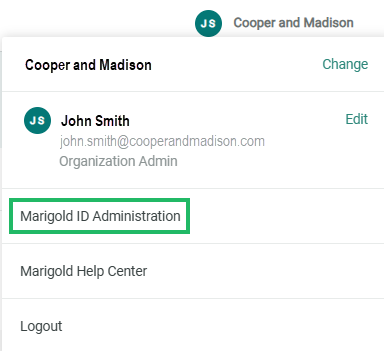
Click your profile icon in the top-right corner of the screen. The Profile Info pop-up window is displayed.
-
Within the Profile Info pop-up window, click Zeta Login Administration. This will take you to the Zeta Login Administration environment, with the Users tab selected by default.
-
Search for the desired user (see View All Users for more information on the search options).Click on their name to visit their user profile.
-
Here you will see the user's details as well as their current status.
Click Options to open a dropdown with the options for editing the user's access.
- Select the desired action from those available:
- Suspend
- Deactivate (only available when a user has been suspended)
- Delete (only available when a user has been deactivated)
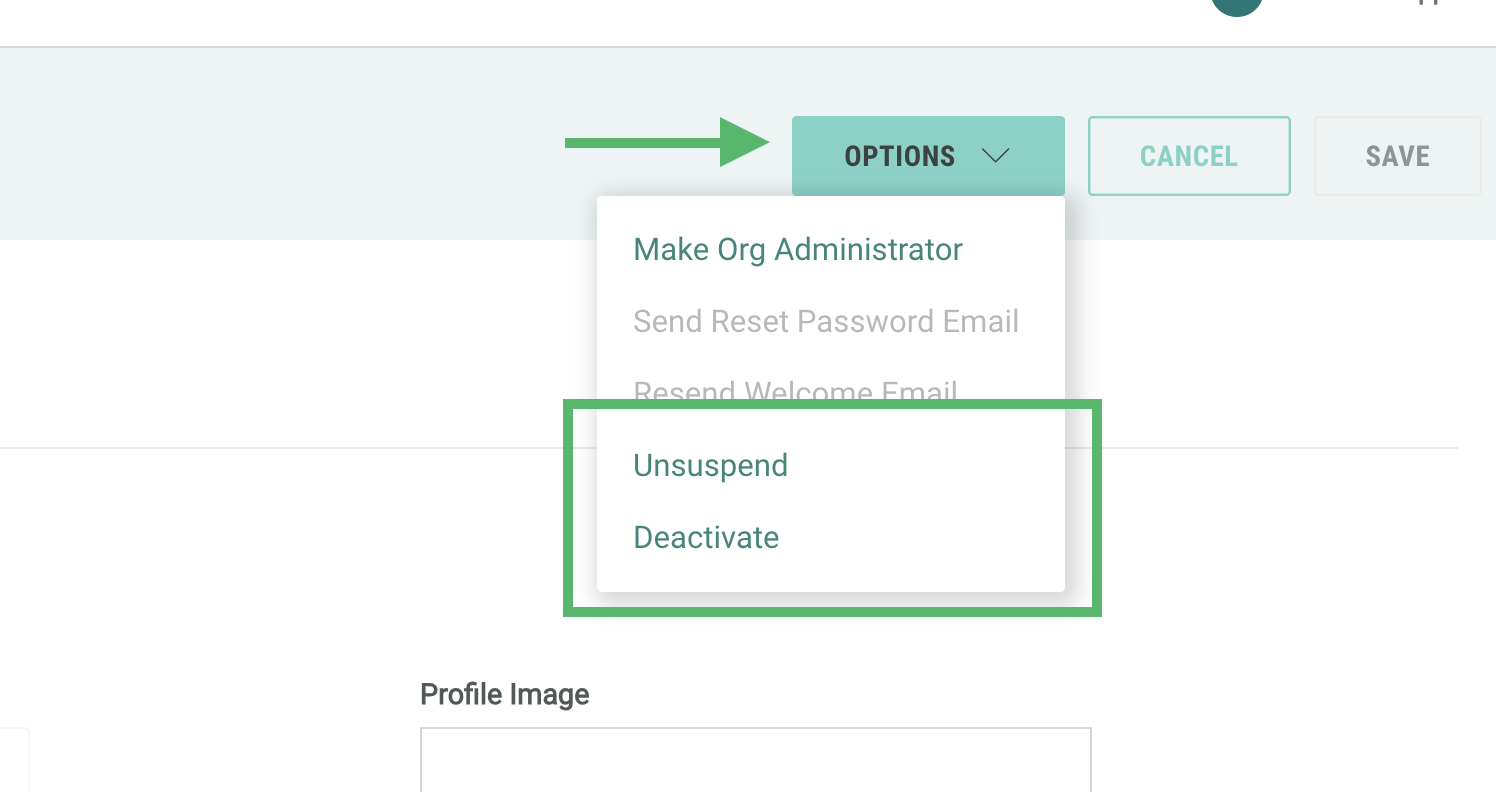
Note: A user must be suspended before you are able to deactivate their account. Similarly, a user must be deactivated before you are able to delete them.
- Click Yes within the pop-up that appears to confirm the action.
Reactivate a user
If a user has been deactivated, you can reactivate their account following the same instructions as above:
From the dropdown, select Reactivate.
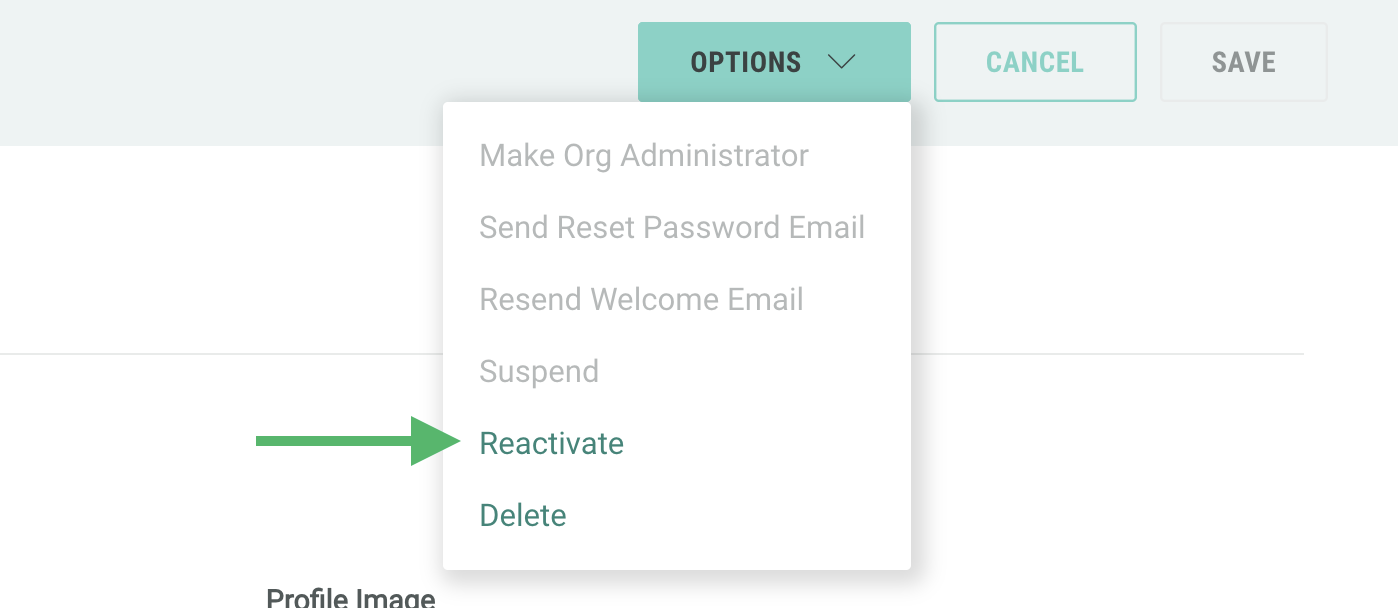
Once a user has been reactivated, they will become an active user and will no longer have any restrictions on their account.
